


|
|
|
by Ray C. Freeman III, LEGO CAD designer
Other Topics:
Creating Your
Own Animations
Using LEGO CAD
With Other Software
Making
Tricky Connections
There a many ways of creating and displaying graphic images on computers. We will start with a discussion of these specifically addressing where technology is today, where software is today, and where LEGO CAD fits in.

The leftmost image above is an enlargement of a circle
created in a PAINT program. Paint programs were among the first graphics
programs created for PCs, and remain popular today. The premise of a Paint
program is that the computer screen is composed of ‘pixels’, or
individual dots of color or light, and that the user may directly change
the color of each of these pixels using a number of methods. Early Paint
programs such as Z-Soft’s PC Paintbrush created a model for today’s
Paint software, and in fact for the modern computer interface, by
including a number of ‘tools’, such as a pencil, a paint bucket,
an airbrush, etc. Each of these tools directly changes the colors of
pixels on the screen in a way that emulates the real world tool it is name
after. A Circle tool would change a number of pixels in the shape of a
circle to the current color. The fact that they are in the shape of a
circle is not stored, only the pixels themselves.
The next image shows a circle in a 2D CAD program, such as AutoCAD. Note that the center and one point on the circle are indicated. These two points, rather than the pixels used to display the circle, may be stored and used to recreate the image of the circle on the screen at any time. This allows the display to be scaled to any size and prints to be made at any scale. The pixels used to display the circle are recalculated each time.
The third image shows a circle in a DRAW program, such as Corel DRAW or Adobe Freehand, where ‘handles’ (the square dots in the corners) are typically employed to define the size and shape of the circle, rather than the center and a point on the radius. These handles can be dragged by the user to rescale or reshape the circle. Note the subtle difference between the CAD method and the DRAW method of defining the circle. The CAD method is based on the geometric definition of a circle, while the DRAW method is based on it’s visual appearance on the page. Both can recreate the circle at any scale, but DRAW programs usually use the dimensions of a sheet of paper as a reference, while CAD programs use the dimensions of the object being represented and deal with fitting to the paper or the screen on the fly.
The three images on the right show a three-dimensional circle, or a sphere, as it might be defined in a 3D CAD program. First, a ‘wireframe’ image of a sphere, indicating the individual ‘polygons’ or flat surfaces, that combine to create the shape of a sphere. Next, the actual geometry of the polygons are replaced with a representation of the light that would reflect off of the sphere, and finally, the notion thata material might be represented as well as the fact that the sphere may cast a shadow on other objects.
Sophisticated, professional level 3D CAD programs such as Autodesk's 3D Studio MAX include not only light reflectance and shadow casting, but transparency, reflectivity, and other visual attributes of objects, as well as animations produced by transforming the geometry in the model in complex and hierarchical ways. These programs are used in motion picture production, engineering simulations, and architectural walkthroughs, among other uses.
There are many different types of software on the market today. Many games are based on 3D environments created by the game’s authors which are experienced by the user in the course of the game. These include various racing games and most current action games. Some of these are pre-rendered and saved as images on a CD which are shown as needed, while others are actual 3D environments which are rendered by the game on an as-needed basis. However, in none of these games may the user directly interact with the environment in a way not programmed by the game’s designers, nor may he/she manipulate or change the modeled environment.
There are also a number of programs which allow the user to manipulate pre-drawn elements to create their own images. Some of these even do a pretty good job of evoking a feeling of 3D. Most of these, however, use a technology similar to ‘Colorforms’, in which the user is simply piling 2D images one on top of the other to create an image which has some 3D attributes. Examples include Davison’s Kid Cad, Byron Preiss’ Hard Hat (sub-titled The Ultimate Building Block Set on CD-ROM) , and Gryphon Bricks (a LEGO look-alike).
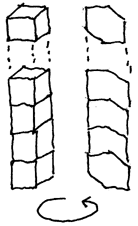
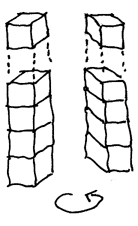
To further explain this idea, the image on the left
above show what would happen if you turned around a drawing made in the ‘Colorforms’
way, using simulated 3D, and the image on the right shows would happen if
you turned around the model created in a true 3D CAD program. Note that in
simulated 3D, the images would not display properly if seen from the back
side, because they are really just flat representations stacked on top of
each other in such a manner that those in front or above block out those
behind. You can see the full back side of the block at the bottom of the
stack from the back. In the Real 3D example, the blocks look just as ‘real’
from the back side as from the front.
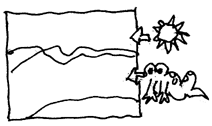

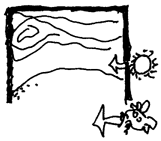
These additional images further illustrate the
differences in technology by showing what simulated and real 3D would look
like if you could see them from above. The sketch on the left shows a
typical interactive interface. The sketch in tme middle shows what is
really happening in the typical simulated 3D program. Finally, the sketch
on the rights shows what happens in a real 3D program like LEGO CAD.
The primary advantage of a program which creates it’s images on the fly from geometric data rather than storing the pixels is the flexibility available in how the drawing is displayed. Lines can be thick or thin, wiggly or straight. Complex calculations can be carried out on the data in order to transform elements of the drawing without changing other elements, etc. If we are talking about 3D data, the options are even greater. As discussed above, the effect of lighting can be simulated, materials may be applied, etc. In addition, 2D images can be created from 3D data by simply choosing to view the model straight on from any direction. The data may be abstracted, so that more or less detail is shown, etc. The following images illustrate the variety of ways in which a 3D model may be displayed on a computer screen or printed on paper:

The first view shown here is a familiar type of view
know as an isometric view. An isometric is one of many views in which
lines that are parallel in real life are parallel in the drawing. In the
case of the isometric, vertical lines are drawn vertically, but other
lines are drawn at a 30 degree angle. We can vary the angle of view by
varying the angle used to drawn these lines. As noted above, the same 3D
data can be used to create both the Side View and the Plan View shown
next. Note that it would be difficult to create the 3D View from these
drawings, but it is easy to create these from 3D data.
Finally, a Perspective View can be created. This is the closest that we can get to simulating how the human eye actually sees things in real life. Note that instead of being parallel in the drawing, lines which are parallel in real life converge in the distance in a perspective view. Many times, perspective views are created from ‘eye level’, looking straight ahead, creating two advantages. The first of these is that it keeps the vertical lines from converging above or below, which often makes the image look distorted (our brains figure this out in real life, but it can look funny on paper), and it gives us more of a feeling of being ‘in’ the model, rather than looking at it from the outside, as in the other views. Currently, LEGO CAD does not support perspective viewing.
Even with good tools, it can be difficult to model a complex object like as a building. Even a simple chair can be a challenge to those unaccustomed to visualizing and modeling in 3D:
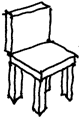
However, if we break the chair up into a number of
elements, it gets a little simpler:
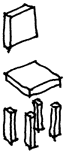
Now that we have separated the back, seat, and lets, we
can create simple models of each of these individual parts. In fact,
adding a little more detail to show the chair more realistically isn’t
so hard, now that we don’t have to worry about the whole chair
anymore:
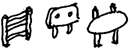

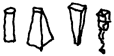
Now that we have modeled these simpler elements, we can
reassemble them a wide variety of different finished chairs.
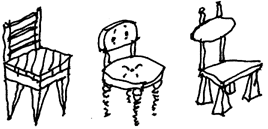
From a modeling point of view, this is infinitely easier
than trying to make a model of any one of these chairs, and it provides
the advantage of allowing us to mix and match, i.e., change the legs only
without making a whole new model. In fact, the smaller the elements that
we break the chair into (within reason), the more flexibility we aquire.
This is the idea behind LEGO CAD, and indeed, behind LEGO Bricks
themselves.
CyberToys, Inc. | The White House Is Our House | LEGO CAD | The CyberToy | Design Thingy | Home Page
©1998 CyberToys, Inc. · 1932 First Avenue, Suite 928 · Seattle, Washington 98101 · (206) 269-0579 fax: 728-2341
This information may be reprinted so long as authorship is credited to Ray C. Freeman III, with the CyberToys, Inc. copyright notice attached.